Earlier this month we wrote about Vault HQ and HQ Sketch, the dashboard that holds the whole company on one screen. It had one weakness: it lived in a browser tab, and tabs get buried. So we gave it a home on the desktop.
A dock that is always there
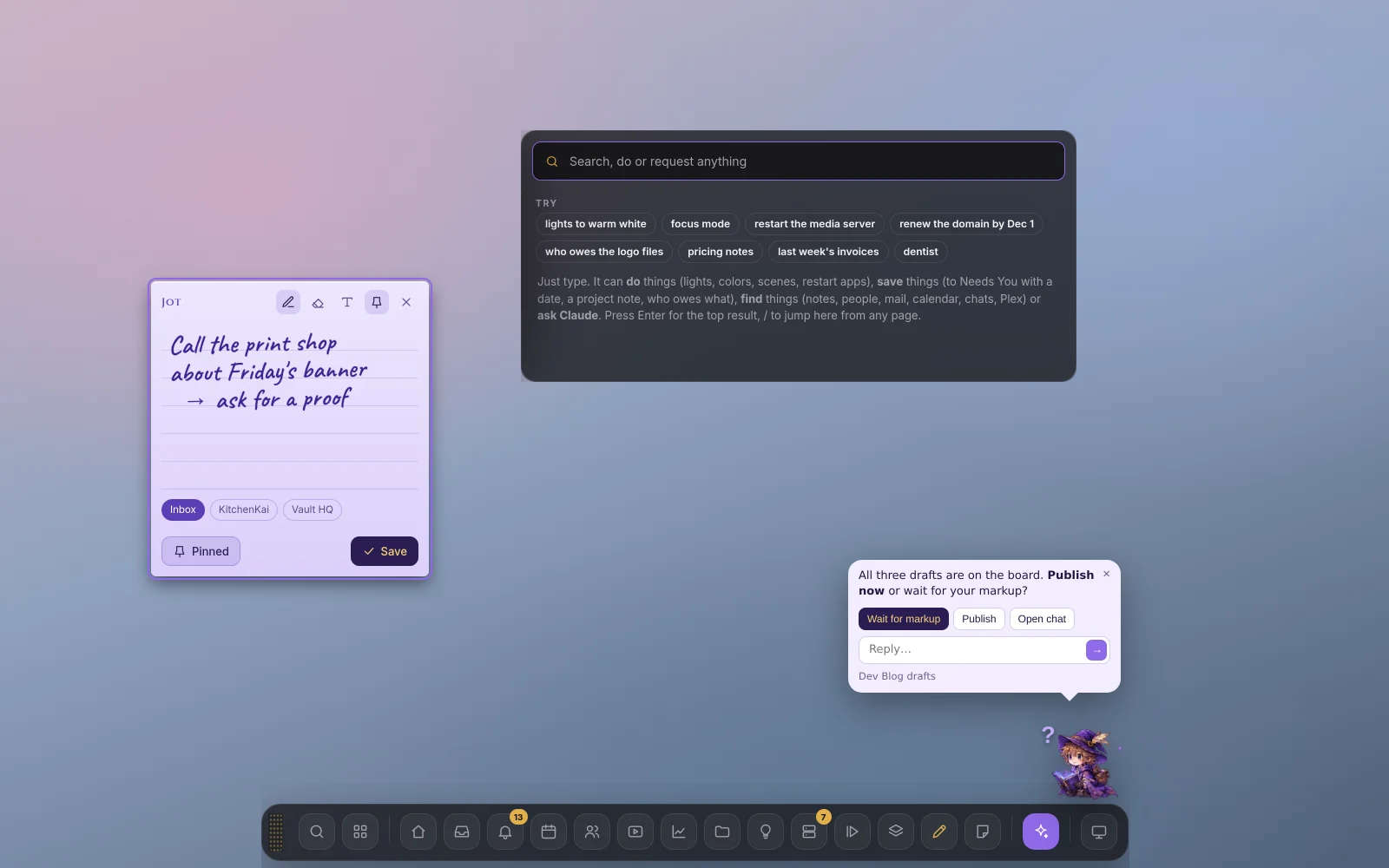
The app is a dock along the edge of the screen. Search sits first, then every dashboard page, the pen, a sticky note and the AI. Icons grow as the mouse passes over them, and gold badges show what is waiting. Drag it to a side and it stands up straight. It hides when a video or game goes full screen.

The panels are the dashboard's own parts in frosted glass, not a second design to keep in sync. When the dashboard changes, the app changes with it.
Keys for the things you do ten times a day
Search from anywhere is one shortcut. A sticky note is another. A third freezes the screen so you can draw on it.
Mark up anything, then send it or save it
HQ Sketch used to work on dashboard pages and boards. Now it works on anything on the screen. Press the key, the screen freezes, and the drawing tools appear. Circle the problem and send it to the AI, or press Later and it lands in that project's inbox for another day.
Jot: a sticky note that files itself
Jot is a small lilac note. Write on it with a pen or type. Pick a project and save, and the note goes to that project's inbox with the drawing, the ink and the handwriting turned into text. Pin one and it stays on the screen, even after a restart.
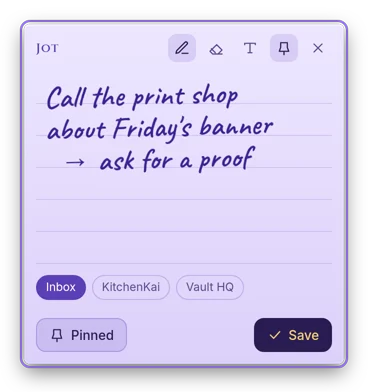
- Pen or keyboard
- Handwriting to text
- Saves to the right project
- Pin it to the screen
The AI got its own app
We first planned to carry the dashboard's AI column into the new app. Then we asked why we would rebuild a chat app when a good one already exists. Our AI conversations now live in Claude's own desktop app, and we added a Vault HQ panel to it. The panel shows what the AI is about to pick up from what we did on the dashboard, with a way to skip anything, plus shortcuts and a list of what the AI made today. Tap a picture it made and it opens on a Sketch board, ready to mark up.
Build the part that is yours. Plug into the part someone already does well.
A buddy instead of pop-ups
When several AI chats run at once, you need to know when one finishes or asks a question. Pop-up banners stack up and get ignored. So the dock got a small character, the Wanderer. He shows up only when something is waiting, with the message in a speech bubble. Type a reply in the bubble and it lands in that chat as if you had typed it there. When nothing is waiting, he is gone.
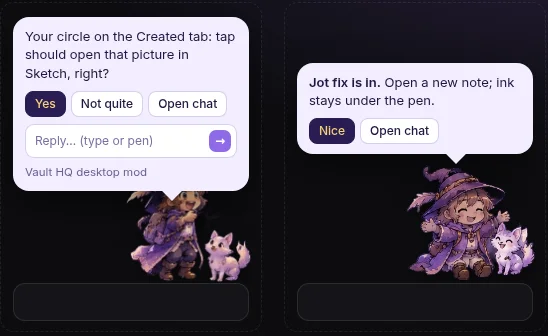
We run AI helpers from two different companies, and the Wanderer now speaks for both. A question from either one shows up in the same bubble, and your reply goes back to the helper that asked. If that helper is busy or out of its usage for the day, the reply is handed to the other one instead of sitting and waiting.
Built the way we build everything
The app started as a mockup on a board, went through rounds of questions, and became 10 tickets, each built and tested by its own AI helper. The first real run on Windows needed a string of small fixes, from the signing certificate to how quickly the dock reacts. It still updates itself from our own server, and when that server is unreachable it keeps a copy and queues what you save.
What this means for your business
A dashboard is only useful if it is in front of you. If your team lives in a few key screens, we can put them on the desktop, one key away, in your look, without building a whole new system.